

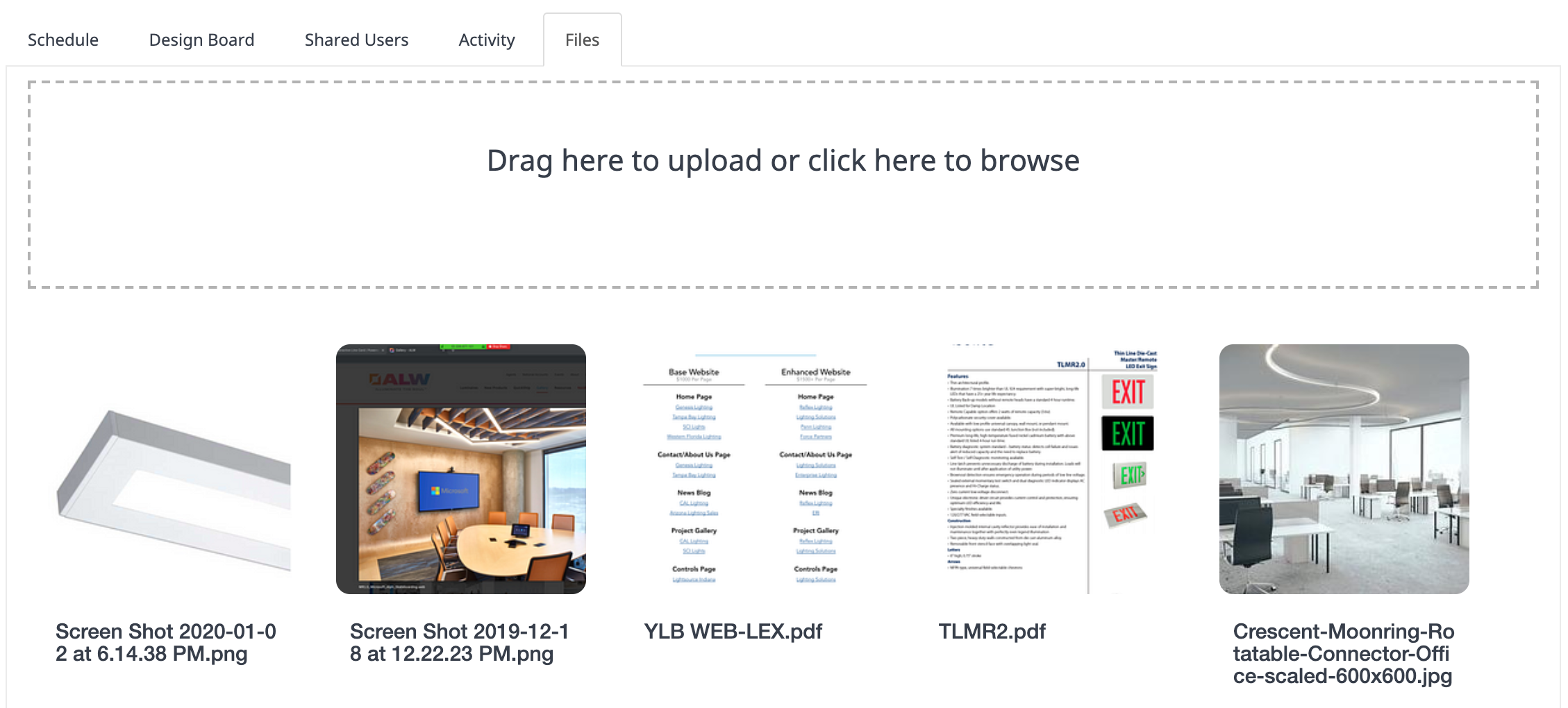
Have you ever wanted to add a photo that wasn’t in the Application Photo search? Or perhaps add a .pdf that gives your client a bit more information at a glance? This is what Project Storage was built for!
The Project Storage feature has been added to all PRO Level users projects. You can find it as a tab on your project next to the Activity log.

Any user on a private project can add to the file storage or access this area to download files. You can drag and drop your files to upload them, or click within the area to open a file selector.
Once a file is added, it will appear within this tab labeled with its file name. File names cannot be edited after upload so please make sure it is labeled in a way that will assist your customer. These files will only be accessible for this project. If you find that it would be a useful file for an additional project as well, a great practice is to rename it and upload it onto the new project to add the personal touch for your customer!
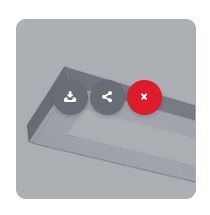
Once added, hovering over an image allows you to open certain options. You can download the file, share it or delete it. Most users will just download it to review, but with the share option you can send a private link to someone who is on the project to call it out further. Or you can use the public link to share the file with any users who may only have public access to the project or any decision makers who may not be on the project at all. This means your client can use the public link to send it around their office for feedback, notes, etc.
A maximum of 50 gigabytes of data is available in Project Storage per project, and the maximum file size that can be uploaded is 100 megabytes. To keep your storage volume at a manageable level, delete unnecessary files prior to archiving old projects, that way they aren’t taking up valuable space for your team.